![owlops-2.png]](https://www.owlops.com/hs-fs/hubfs/owlops-2.png?width=197&height=75&name=owlops-2.png)
After you've set up the header of your checklist (see Creating a Checklist), you can add custom line items to tailor the checklist to your needs. To add new line items to your checklist, follow the steps below.
Step 1: Open the checklist and choose a section
-
Go to Admin > Checklist and click View next to your checklist.
-
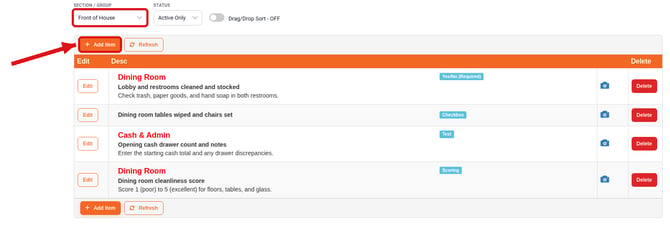
On the Designer tab, choose the section you're adding to in the Section / Group filter. To work on the top level of the checklist, choose -- Main.
-
Click + Add Item.
Step 2: Choose the Type
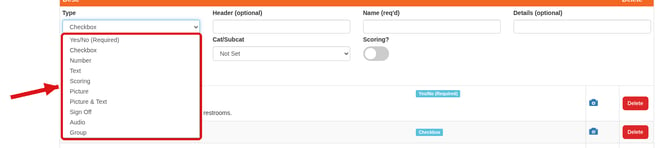
Click the Type dropdown to choose the kind of line item you're creating.

-
Yes/No (Required): allows for easy yes/no answers if the checklist item is complete.
-
Checkbox: requires checking the box to indicate if completed.
-
Number: enter a number (temperature, quantity, etc.).
-
Text: allows for a description.
-
Scoring: a score between a minimum and maximum (see Checklist Scoring).
-
Picture: attach a picture of a checklist item.
-
Picture & Text: attach a picture and add a description.
-
Sign Off: lets a supervisor verify checklist completion (see Checklist Sign Off).
-
Audio: record an audio note.
-
Group: if there are multiple items to be grouped in a section, you can group these together (e.g. multiple fryers to report on, employee numbers, etc.).
Section is also available in the list when you're at the -- Main level (see Checklist Sections). For a full comparison of every type and its options, see Creating a Checklist.
Step 3: Fill in the details
-
Header (optional): a heading shown above the line item.
-
Name (req'd): the instruction that will appear on your line item.
-
Details (optional): a chance to add further details to the line item.
-
Group: the section or group the line item belongs to.
-
Cat/Subcat: if a follow-up task is created within the checklist, the task will be assigned to this category and subcategory.
Some types have extra options:
-
Is Required?: turn on to make the line item required.
-
Low Range / High Range (optional): for Number items, the expected range, such as 33 to 41 for a cooler temperature.
-
Scoring (Min) / Scoring (Max): for Scoring items.
-
Scoring?: for Checkbox items, turns on scoring.

Step 4: Insert the line item
Click Insert to add the line item. To change an item later, click Edit next to it, make your changes, and click Update.

Step 5: Preview your checklist
Once you have added all of your line items, click the Preview tab to see how your checklist will appear. For information on how to access and complete a checklist, see Completing a Checklist.