![owlops-2.png]](https://www.owlops.com/hs-fs/hubfs/owlops-2.png?height=40&name=owlops-2.png)
Step 1.
If you don't already have Chrome downloaded on your iPhone, download it from the app store.
Step 2:
Remove the existing OwlOps from your homescreen that is linked to the Safari browser (hold the icon down and select Delete Bookmark)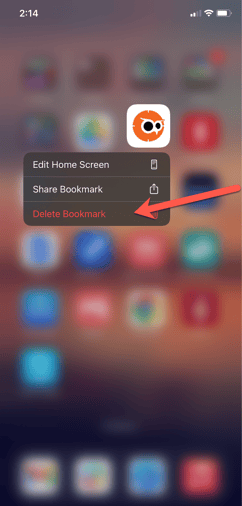
Step 3:
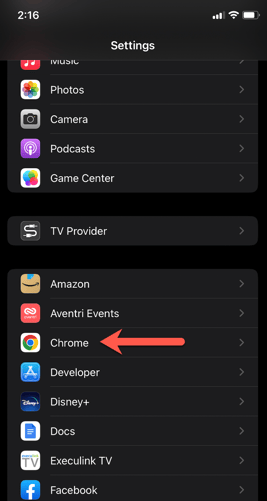
Go to Settings. Scroll to find and click on Chrome
Step 4:
Select Default Browser App 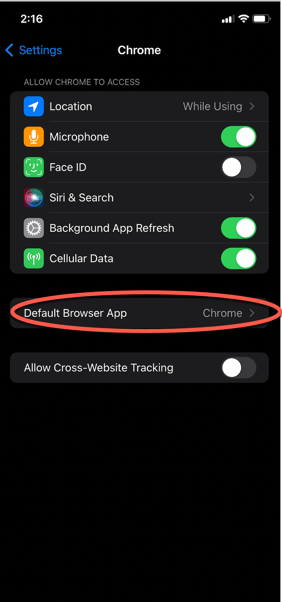
Step 5:
Make sure Chrome is selected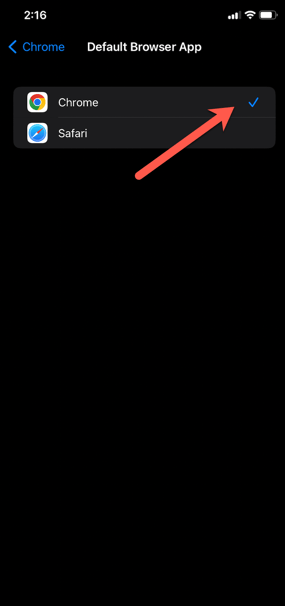
Step 6:
Login to OwlOps using your Chrome browser. In the top right corner, select the square with the upward pointing arrow.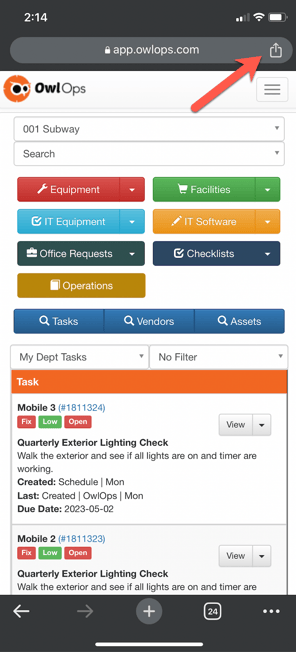
Step 8:
Choose Add to Home Screen.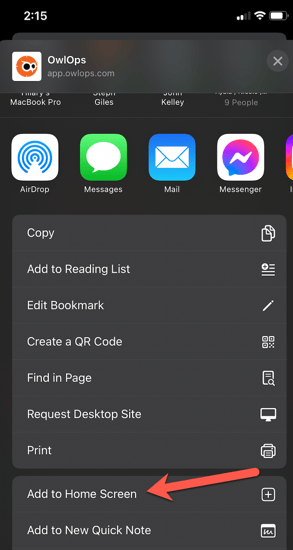
Step 9:
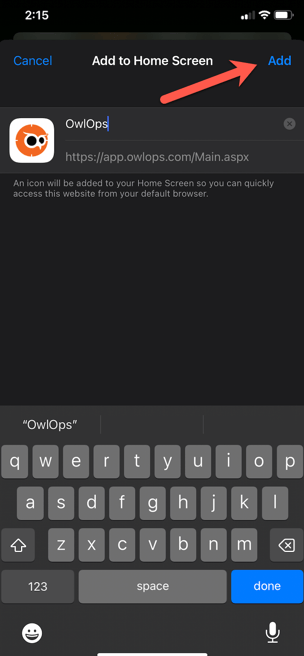
Add.