![owlops-2.png]](https://www.owlops.com/hs-fs/hubfs/owlops-2.png?width=197&height=75&name=owlops-2.png)
An automation watches your tasks and acts when one goes unanswered, sits too long, or blows its due date. It can add a note, escalate the priority, change the status, reassign the task or pull the right people in.
Every rule reads like a sentence: when this happens, to these tasks, then do this. You can run as many rules as you need side by side.
Accessing Automations
Go to Setup > Automations (reach out to support@owlops.com in case this needs to be enabled for you).
How Timing Works
An automation never changes a task directly. It queues the change, and the change is applied the same way as an update a person types. There are four steps:
| Step | How often | What happens |
| Evaluate | Every 5 minutes | Active rules look for matching tasks. |
| Tag & queue | Immediately | People to notify are tagged on the task and the update is queued. |
| Apply | Every 5 minutes | The note is posted, along with any priority or status change. |
| Deliver | Every minute | Email, SMS, push notifications and the in-app feed go out. |
Expect a few minutes between a condition being met and a notification arriving.
Creating an Automation
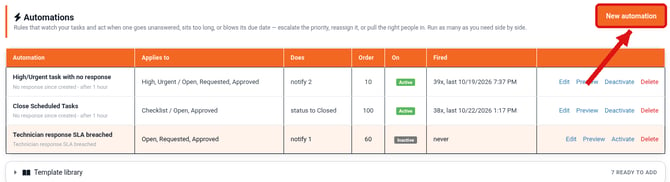
Click New automation. The editor opens at the top of the page, with three sections: When (1), Applies to (2) and Then (3). Fill them in from left to right, then click Save.
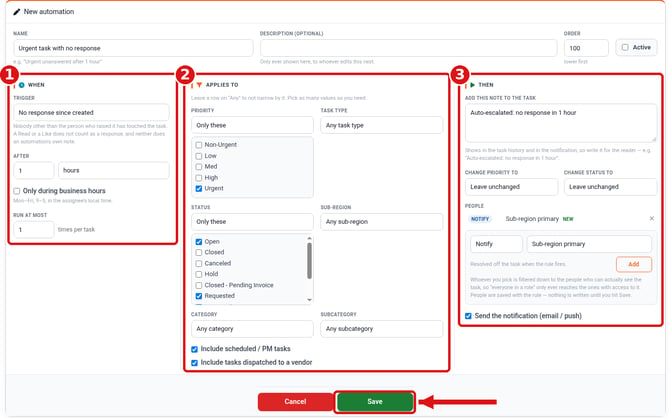
Name, Description, Order and Active
The top row of the editor names the rule and controls when it runs.
- Name: what the rule is called in the list and in Recent activity. Make it clear to someone who didn't build it, for example "Urgent unanswered after 1 hour" rather than "Rule 3".
- Description (optional): a note for whoever edits the rule next. It's only shown in the editor.
- Order: lower numbers run first. This only matters when two rules match the same task at the same time. The rule with the lower Order acts first, and the other one acts on a later run. Nothing is lost.
- Active: new rules are always inactive. Leave this unchecked until you've previewed the rule (see Previewing and Activating a Rule below).

1. When
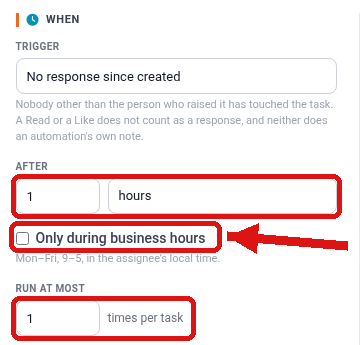
When sets what makes the rule fire.
- Trigger: which clock the rule watches. See the triggers table below.
- After: how long the condition must last before the rule acts, in minutes, hours or days. "2 hours" and "120 minutes" are the same.
- Only during business hours: the rule only fires Monday to Friday, 9 am to 5 pm, in the local time of the person the task is assigned to (or the person who raised it, if it's unassigned). This controls when the rule fires, not how time is counted. A task that goes quiet on Friday afternoon still has the weekend counted against it, and the rule acts on Monday morning.
- Run at most ... times per task: leave this at 1 for a one-time escalation. Raise it for a recurring reminder. For example, 3 chases the task three times, with a full wait between each one.
Triggers
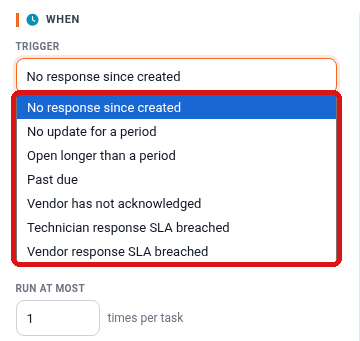
| Trigger | Clock starts | Clock stops when | Use it for |
| No response since created | The task is raised | Anyone other than the person who raised it posts a real update | "Nobody has picked this up." The strictest trigger. |
| No update for a period | The last update | Anyone posts any update, including the person who raised it | "This has gone quiet." Resets every time someone updates the task. |
| Open longer than a period | The task is raised | Never. Only closing the task takes it out of scope. | Hard age limits. |
| Past due | The due date passes | Not applicable | Chasing overdue work. Tasks with no due date are skipped. |
| Vendor has not acknowledged | The task is dispatched to a vendor | The vendor acknowledges or updates the task | Vendor accountability. Only applies to tasks dispatched to a vendor. |
| Technician response SLA breached | The task is raised | A technician responds. The rule fires if the technician response target passes first. | SLA tracking for your team. Requires targets in Setup › SLA Targets. |
| Vendor response SLA breached | The task is dispatched to a vendor | The vendor acknowledges the task. The rule fires if the vendor response target passes first. | SLA tracking for vendors. Requires targets in Setup › SLA Targets. |
What counts as a response? A real update from a real person. Opening (reading) or liking a task doesn't count, and neither does a note added by an automation.
Note: The two SLA triggers use the response targets set in Setup › SLA Targets (also in a category's Actions menu). Until targets are set, these rules don't match any tasks.
2. Applies to
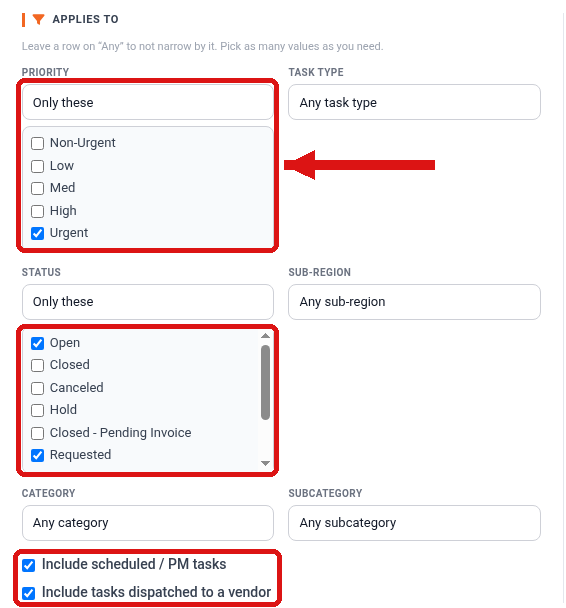
Applies to narrows which tasks the rule watches. Each row has three choices:
- Any: don't narrow by this row.
- Only these: the task must match one of the values you check.
- All except these: the task must not match any of the values you check.
You can check as many values as you need. For example, High and Urgent can be one rule.
| Row | Matches on |
| Priority | Non-Urgent, Low, Med, High, Urgent |
| Task type | Fix, Need, Do, Log, Project, Checklist |
| Status | Open, Closed, Canceled, Hold, Closed - Pending Invoice, Requested, Approved, Denied, Schedule |
| Sub-region | The task's sub-region (the district manager's territory in most setups) |
| Category | The category the task was raised under |
| Subcategory | The task's subcategory, listed as Category > Subcategory |
Status starts on Only these with Open, Requested and Approved checked, so new rules only watch open work. Change this if you need to.
Two checkboxes at the bottom are checked by default:
- Include scheduled / PM tasks: uncheck this to watch only tasks raised by hand.
- Include tasks dispatched to a vendor: uncheck this to watch only your own team's work.
Deleted tasks, individual checklist line items and timesheet tasks are never included.
3. Then
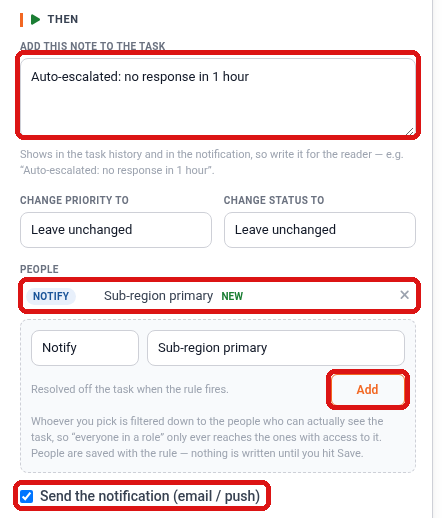
Then sets what the rule does. Everything here happens as a single task update.
- Add this note to the task: the note is posted to the task history and is the text of the notification, so write it for the reader, for example "Auto-escalated: no response in 1 hour".
- Change priority to: optional. Raising a task to High or Urgent means the notification ignores people's quiet hours.
- Change status to: optional. Most often used to cancel stale work automatically.
- People: choose Notify or Assign to, choose who (see the table below), then click Add. You can add more than one.
- Notify tags the person on the task, and they stay tagged on it. - Assign to reassigns the task. If more than one person matches, the first one gets it.
- Send the notification (email / push): checked by default. Uncheck it to apply the rule silently. The note and any changes are still made, but nobody is notified.
A rule with no one to notify or assign still posts its note and applies any priority or status change.
Who Gets Reached
People are worked out from the task when the rule fires.
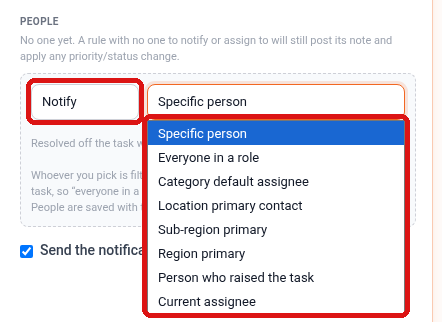
| Option | Who it reaches |
| Specific person | Exactly the person you pick |
| Everyone in a role | Every active person with that role |
| Category default assignee | Whoever the task's category or subcategory would normally assign it to |
| Location primary contact | The primary contact for the task's location |
| Sub-region primary | The sub-region's primary user (the district manager in most setups) |
| Region primary | The region's primary user |
| Person who raised the task | The person who created the task |
| Current assignee | Whoever the task is assigned to now |
Only people who can actually see the task are reached. For example, Everyone in a role only reaches the people in that role who have access to the task.
When you're done, click Save.
Previewing and Activating a Rule
After you save, the new rule shows as Inactive in the list, with the message "Saved. Use Preview to see what it would do before you arm it."
Click Preview on the rule's row.
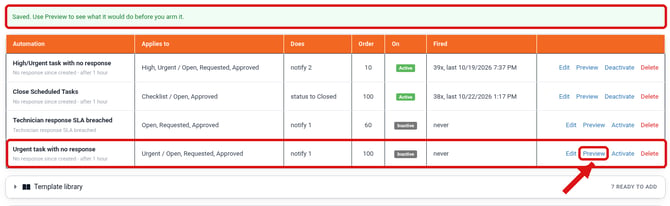
Preview shows which tasks the rule would act on right now, and who it would notify or assign. Nothing is changed. Preview works on inactive rules, so use it every time.

When the preview looks right, click Activate on the rule's row, or open it with Edit and check Active.
Using the Template Library
The Template library has ready-made automations you can add with one click. Click Template library on the Automations page to expand it, then click Add to my automations on a template, or Add the starter set to add the starter templates. Templates you already have show Already added.
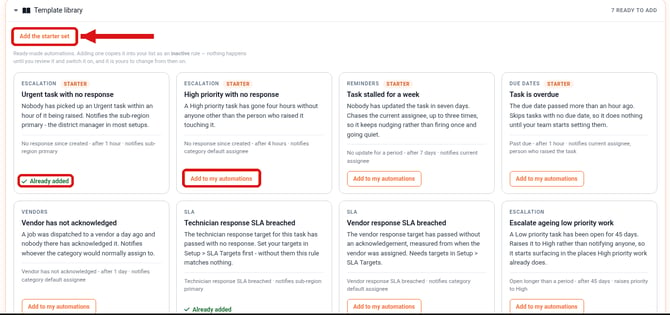
| Template | Fires when | Does |
| Urgent task with no response (starter) | Nobody picks up an Urgent task within an hour | Notifies the sub-region primary |
| High priority with no response (starter) | A High task has had no response for four hours | Notifies the category default assignee |
| Task stalled for a week (starter) | Seven days with no update of any kind | Nudges the current assignee, up to three times |
| Task is overdue (starter) | The due date passed more than an hour ago | Notifies the current assignee and the person who raised the task |
| Vendor has not acknowledged | A day after dispatch with no vendor response | Notifies the category default assignee |
| Technician response SLA breached | The technician response target for the task passes | Notifies the sub-region primary |
| Vendor response SLA breached | The vendor response target passes, measured from dispatch | Notifies the category default assignee |
| Escalate ageing low priority work | A Low task has been open for 45 days | Raises it to High, notifying nobody |
| Cancel abandoned checklists | A checklist task has been open for a day | Cancels it silently |
A template is a copy, not a subscription. Adding a template copies it into your list as an inactive rule. The copy is yours to rename, retime and narrow down, and later changes to the template don't affect it.
Templates only notify people who are worked out from the task, such as the category default assignee, the sub-region primary or the person who raised it. They never name a specific person or role, so narrow your copy to your own categories and people once it's added.
Note: The two SLA templates need response targets set in Setup › SLA Targets. Until then, they don't match any tasks.
Examples
These three rules work well side by side:
| Urgent, unanswered | Vendor chase | Low-priority follow-up | |
| Situation | Nobody has picked up an emergency within the hour | A vendor hasn't acknowledged a dispatched job | Small jobs that have quietly stalled for a week |
| When | No response since created, after 1 hour | Vendor has not acknowledged, after 24 hours | No update for a period, after 7 days |
| Applies to | Priority: Only these > Urgent | Any task | Priority: Only these > Low; Task type: All except these > Checklist |
| Then | Note "Auto-escalated: no response in 1 hour"; Notify Sub-region primary | Note "No vendor response in 24 hours"; Notify Category default assignee | Note "Still open after 7 days"; Notify Current assignee |
| Order | 10 (runs before the others) | 50 | 100, run at most 3 times per task |
Things to Know
- Notified people stay on the task. Notifying someone tags them, and they're copied on that task's future updates. Anyone can remove the tag from the task.
- High and Urgent ignore quiet hours. A rule that raises a task to High or Urgent reaches people outside the hours they've set for email. Keep this for real emergencies.
- One automated update per task at a time. If two rules match the same task, the one with the lower Order acts first and the other waits for the next run.
- Rules start inactive. Nothing you build or add from the library runs until you activate it. Always build or add, then Preview, then activate.