![owlops-2.png]](https://www.owlops.com/hs-fs/hubfs/owlops-2.png?width=197&height=75&name=owlops-2.png)
Skills let you control which technicians appear in the assignment list for a task, based on the categories and subcategories they're qualified to work on. For example, only your plumbers show up when assigning a plumbing task.
Skills are optional and opt-in per person — if you don't set up any skills for someone, nothing changes for them. Once you give a technician a skill, they become "skills-enforced" and will only be offered for work that matches their skills.
How Skills work💡 Skills affect who you can assign a task to. They don't change what a technician can see or do on tasks already assigned to them.
- A skill is a link between a technician and a category or subcategory.
- Grant a whole category and the technician automatically gets every subcategory under it — you only manage the one category entry.
- A technician with no skills is unaffected — they remain available for assignment exactly as before.
- A technician with one or more skills is enforced: they only appear in the assignment list for tasks whose category/subcategory matches a skill they hold.
- People already involved with a task are never hidden. The task's creator, its current assignee, and anyone who has already worked on it stay assignable regardless of skills.
There are three ways to manage skills — use whichever fits what you're doing.
1. The Skills Matrix (best for setup at scale)
Go to Setup → Skills. You'll see a grid with technicians across the top and categories/subcategories down the side. Check a box where a technician should have a skill.
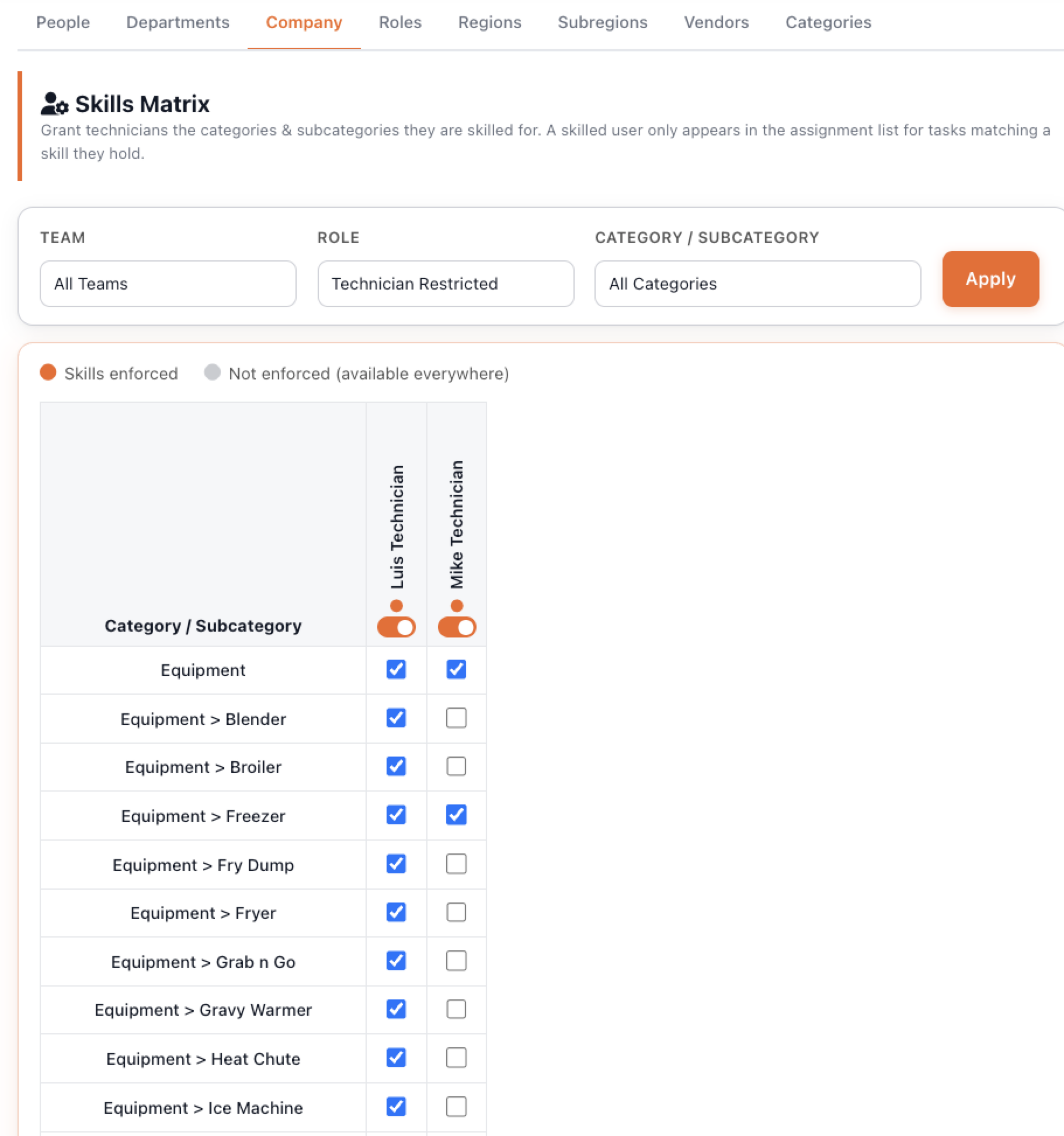
Use the Team, Role, and Category/Subcategory filters at the top to narrow the grid. Selecting a category shows that category and all of its subcategories.
2. From a person
On a technician's profile, open the Skills section and choose the categories/subcategories they're qualified for.
3. From a category or subcategory
On a category or subcategory, use the Skills action to add the people who are qualified for it.
Turning enforcement on or off for a personThe first time you give someone a skill, skills enforcement turns on for them automatically. Each technician has a Skilled User switch you can use to:
- Pause enforcement — keep their recorded skills but temporarily make them available everywhere again.
- Record without enforcing — note someone's skills for reference without limiting their assignments yet.
Sometimes you need to assign a task to someone outside the usual skill set. On the Task Details and task creation screens, next to Assigned To, users with the right permission see a (view all) link:
- (view all) — show every eligible technician, ignoring skills.
- (view skilled) — switch back to only skilled technicians.
[Screenshot: (view all) toggle next to Assigned To]
This link only appears for users whose role has the Skills – Ignore on Assignment permission. The standard task-list assignment stays skills-limited for everyone.
Permissions
Skills are controlled by two role permissions on Setup → Roles / Security (under Task Administration):
| Permission | What it allows |
|---|---|
| Skills – Admin | Manage skills (the Skills Matrix, and the Skills options on people and categories). |
| Skills – Ignore on Assignment | Use the (view all) override when assigning a task. |
Reporting on skills
The Skills Matrix report (in Reports) shows which technicians hold which skills — technicians across the top, categories/subcategories down the side. By default it lists only skilled technicians; you can switch it to show everyone, and filter by team, role, or category/subcategory.
Frequently asked questions
-
If I don't set up any skills, does anything change? No. Assignment works exactly as before until you give someone a skill.
-
I gave a technician a category — do I have to add each subcategory too? No. Granting a category automatically covers all of its subcategories.
-
A technician disappeared from the assignment list — why? They likely have skills set (so they're enforced) and don't have a skill matching that task's category/subcategory. Add the matching skill, pause their enforcement with the Skilled User switch, or use (view all) if you have the permission.
-
Can I still assign a task to someone who already worked on it? Yes. Anyone who created, is assigned to, or has worked on a task always stays assignable.