![owlops-2.png]](https://www.owlops.com/hs-fs/hubfs/owlops-2.png?width=197&height=75&name=owlops-2.png)
The new OwlOps homescreen can be customized to put the information you use most front and center.
There are two areas you can personalize: Stat Cards at the top of the homescreen and Views in the orange task bar.
Managing Your Stat Cards
Stat Cards give you a quick snapshot and numeric value of important groups of tasks. Clicking a card filters your task list so you can jump directly into that work.
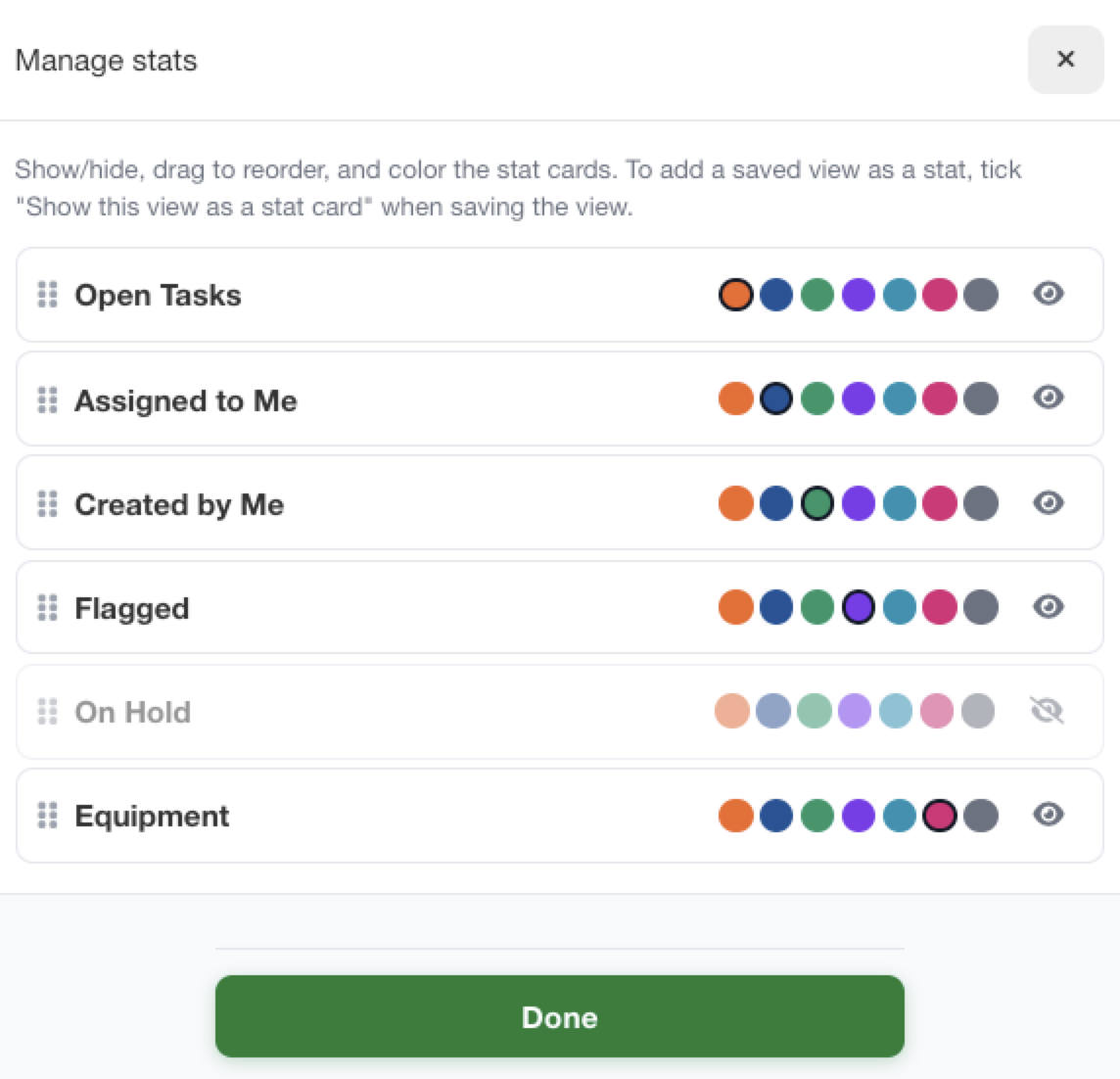
To customize your cards, click Manage on the right side of the Stat Card section.
From here, you can:
- Show or hide cards using the eye icon.
- Reorder cards by dragging them into your preferred order.
- Change the color of a card to make important information easier to spot.
- Click Done when you're finished.

Creating a Stat Card from a Saved View
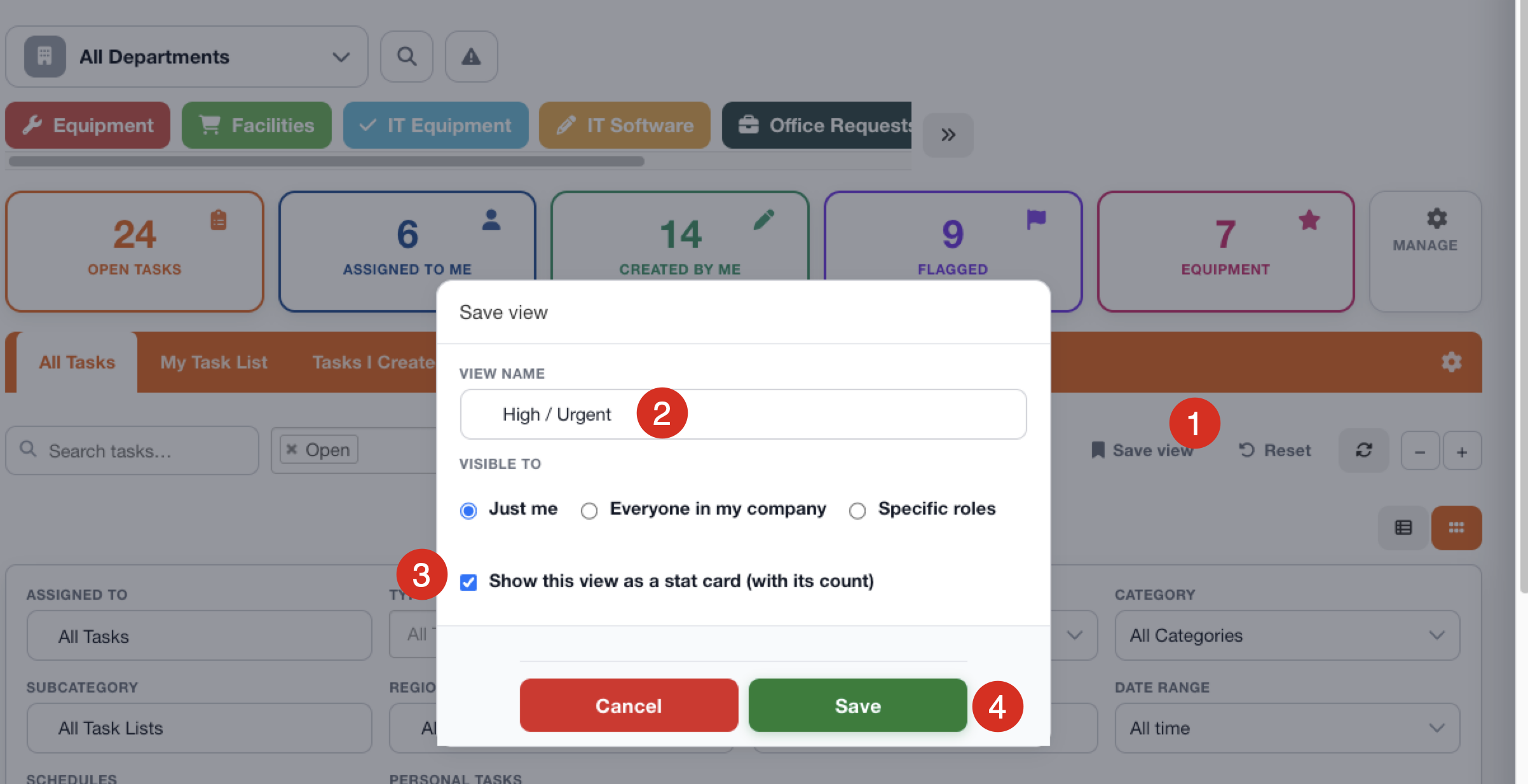
You can also turn one of your own saved views into a Stat Card.
When creating or editing a saved view, select Show this view as a stat card (with its count). Your new card will then appear at the top of the homescreen and can be reordered or customized just like the other cards.
Managing Your Task Views
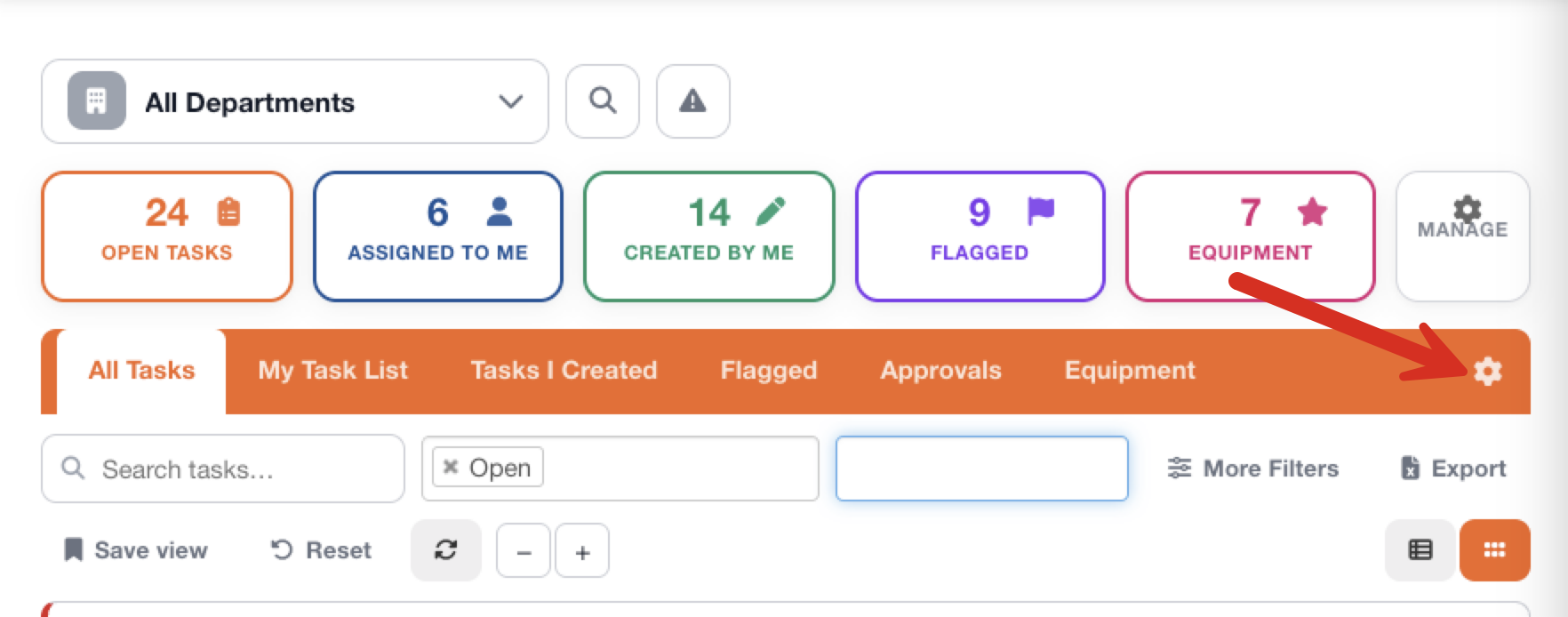
The orange bar on your homescreen contains your Task Views. These are the tabs you use to quickly jump between different task lists, such as All Tasks, My Task List, Tasks I Created, Flagged and Approvals.
You can customize this bar to keep the views you use most easily accessible.
Click the gear icon on the right side of the orange bar to open Manage Views.
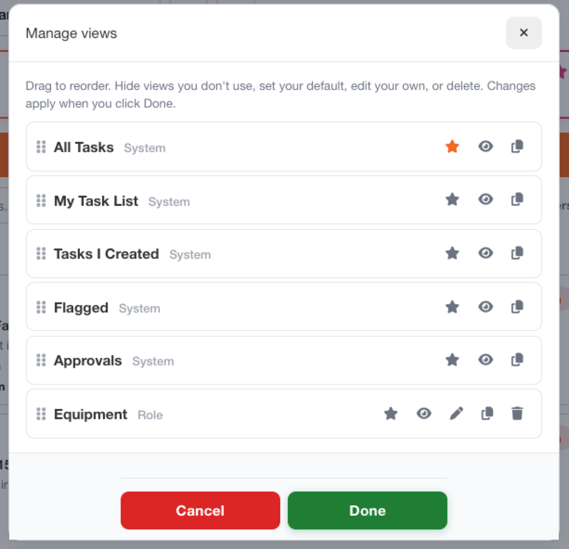
From here, you can:
| Control | What it does |
|---|---|
| Drag Handle | Drag and drop to change the order your views appear in the orange bar. |
| Star | Choose which view automatically opens when you arrive at the homescreen. |
| Eye | Show or hide a view. This is a great way to clean up built-in views you don't regularly use. |
| Pencil | Edit or rename a view you created. |
| Copy | Make a copy of an existing view. This is an easy way to start with a built-in view and customize it for yourself. |
| Trash | Delete a view you've created. Built-in OwlOps views cannot be deleted, but they can be hidden. |
Click Done when you're finished making changes.
Hiding Views You Don't Use
You don't have to keep every built-in view displayed.
For example, if you never use Tasks I Created or Flagged, open Manage Views and click the eye icon to hide them.
They're not deleted—you can return to Manage Views and turn them back on at any time.
Choosing Your Default View
Use the star to choose which view you want to see first when you open the OwlOps homescreen.
This can be especially helpful if you spend most of your time working from My Task List or one of your own custom views instead of All Tasks.
Reordering Your Views
Use the drag handles to put your most-used views first.
Once you click Done, the orange bar will update to match your preferred order, giving you quick access to the task lists you use most often.