![owlops-2.png]](https://www.owlops.com/hs-fs/hubfs/owlops-2.png?width=197&height=75&name=owlops-2.png)
Step 1: Enabling Geolocation
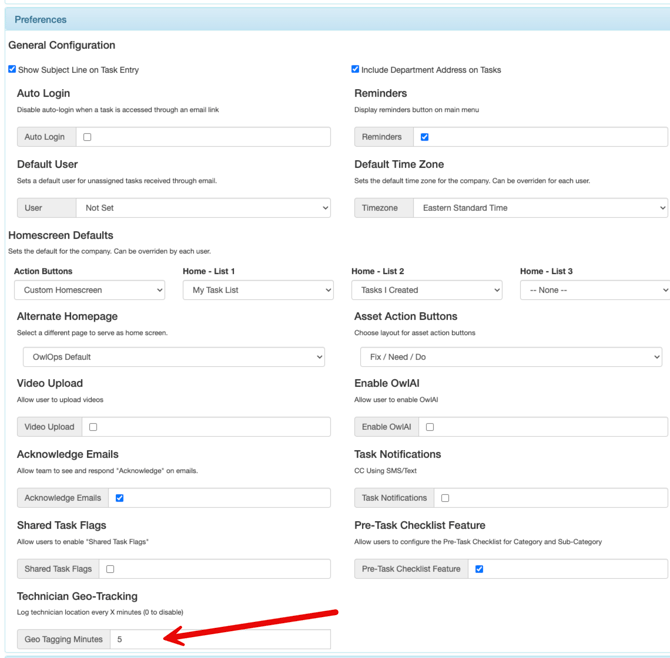
Go to Setup / Company. In the Preferences section, the Technician Geo-Tracking will be defaulted to 0 (off). To enable this, update the quantity to how many minutes you want to see the log for location updates (recommend 5 minutes).
Step 2: Set Up Your Technicians Settings
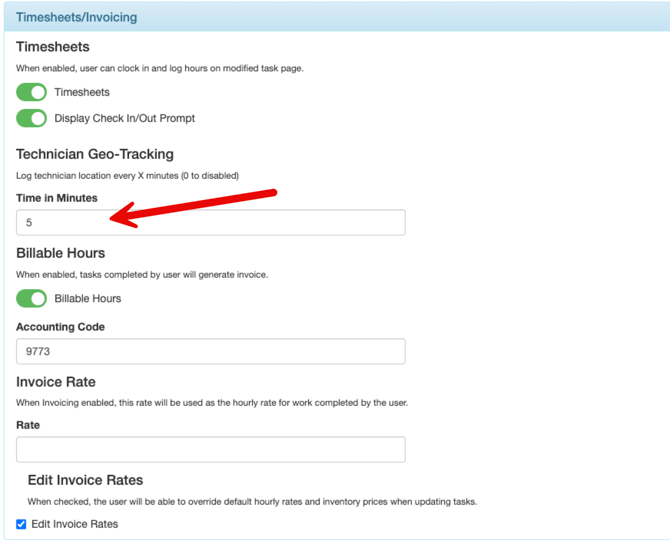
Go to Setup / People. Go to Details for your technician settings and in the Timesheets / Invoicing dropdown, make sure Timesheets are enabled, and check that the Time in Minutes has a quantity.
Note: The Time in Minutes will reflect the company Default. You can override this to a different quantity or set it to 0 to disable for that user.
NOTE:
Geolocation Tracking will only happen when:
-
Time Tracking in minutes is > 0
-
The Technician is using the mobile app
- The Technician is Clocked In