![owlops-2.png]](https://www.owlops.com/hs-fs/hubfs/owlops-2.png?width=197&height=75&name=owlops-2.png)
Step 1: Add a Sign Off line item
- Go to Admin > Checklist and click View next to your checklist.
- On the Designer tab, choose the section in the Section / Group filter where you want the sign off, then click + Add Item.
- In Type, choose Sign Off.
- Add a Name (required). You can also add a Header and Details (both optional).
- Click Insert.
NOTE: If you turn on the Is Required? switch, the user will not be able to close the checklist without this being completed.

The sign off appears in the section's list of line items with a Sign Off label.
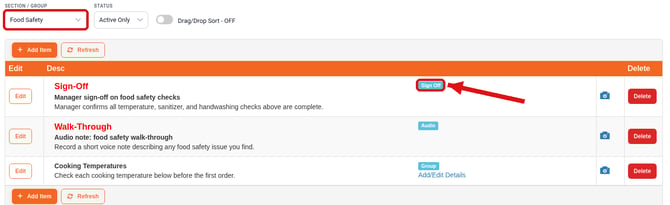
To change it later, click Edit next to the item, make your changes, and click Update.
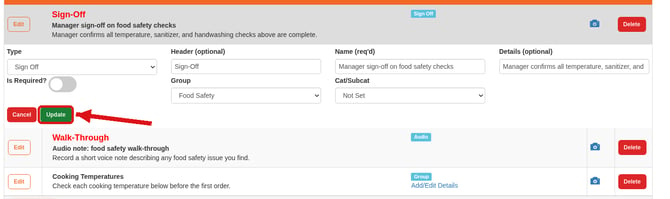
Step 2: Sign off on the checklist
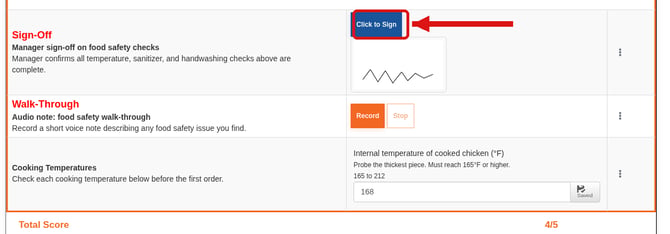
When the checklist is being completed, the Sign Off line item shows a Click to Sign button. The supervisor clicks Click to Sign and signs in the signature pad. The signature then shows under the button.
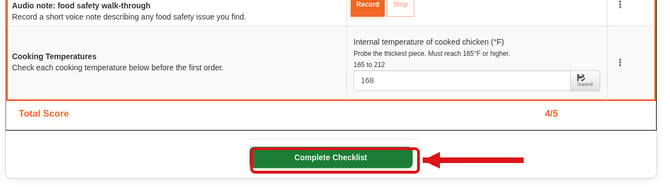
Step 3: Complete the checklist
When every item is filled in, click Complete Checklist at the bottom of the checklist, then click OK to confirm.