![owlops-2.png]](https://www.owlops.com/hs-fs/hubfs/owlops-2.png?width=197&height=75&name=owlops-2.png)
Sections split a checklist into parts, such as Front of House, Kitchen, and Food Safety. It's easiest to add your sections first and then add line items to each one.
Step 1: Add a section
-
Go to Admin > Checklist and click View next to your checklist.
-
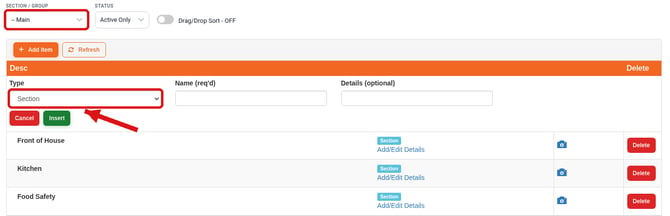
On the Designer tab, make sure Section / Group is set to -- Main, then click + Add Item.
-
In Type, choose Section. Sections can only be added at the Main level.
-
Enter the Name of the section and any Details (optional).
-
Click Insert. Repeat for each section you need.
Step 2: Add line items to a section
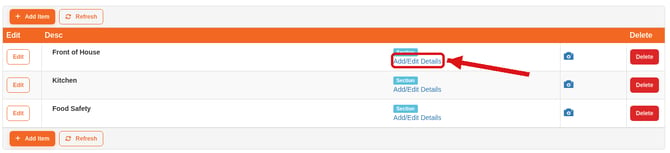
To add line items to a section, click Add/Edit Details next to it.
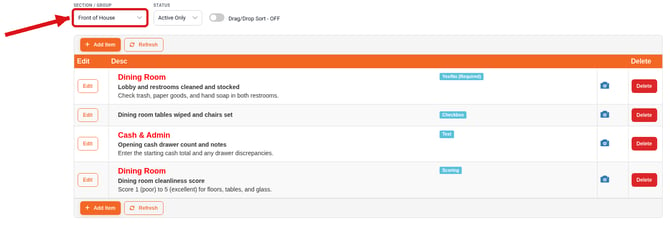
The Section / Group filter now shows that section, and the list shows only its line items. Click + Add Item to add the items that belong in this section. For step-by-step help, see Adding Line Items to a Checklist.
Step 4: Preview the checklist
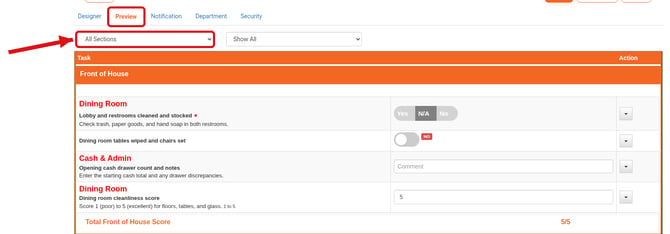
You can always click the Preview tab to see how the checklist will appear. Each section appears as its own heading, and you can use the All Sections dropdown to change which sections are shown.