![owlops-2.png]](https://www.owlops.com/hs-fs/hubfs/owlops-2.png?width=197&height=75&name=owlops-2.png)
Bulk edit lets you change many tasks at once. It's available in list view, for users whose role includes task administration. If you don't see a Select button in the filter bar, that's why.
1. Switch to list view and click Select. A column of checkboxes appears.
2. Tick the tasks you want to change, or use the checkbox in the column heading to take everything on the current page.
A bar appears at the bottom of the screen showing how many you've selected. Click Bulk edit.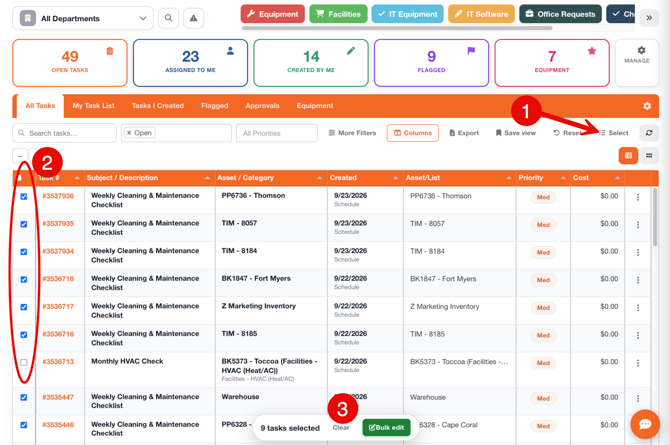
4. Set any combination of Assign to, Priority, Status, Due date and Notes. Anything you leave on "No change" is left alone.
5. Tick Send notification if the people involved should be told.
6. Click Apply.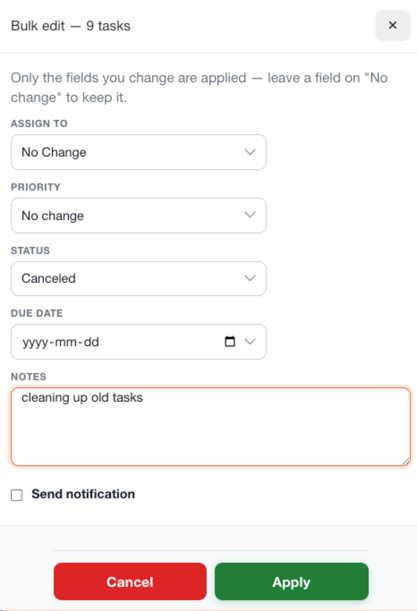
💡 Tips:
- Your selection carries across pages. Tick a few tasks, move to the next page, keep ticking, and they'll all be updated together.
- You have to change at least one field — Apply won't do anything otherwise.
- Leaving Send notification unticked is the quiet option. Worth remembering if you're reassigning a few hundred tasks during a tidy-up.